Installation Guide
-
1Download the extensionGet the Joomla Logo Slider module (.zip file) from your account and save it to your computer.
-
2Log in to your administrator panelGo to
yoursite.com/administratorand sign in. -
3Open the Extension ManagerOn Joomla 4, 5 or 6: System → Install → Extensions. On Joomla 3.x: Extensions → Manage → Install.
-
4Upload and installSelect the Upload Package File tab, choose your downloaded zip, then click Upload & Install.
-
5Find the moduleGo to Content → Site Modules (Joomla 4/5/6) or Extensions → Modules (Joomla 3.x) to begin configuration.
Basic Setup
-
1Open the moduleIn the Module Manager, find “Logo Slider” and click to open its settings.
-
2Set status and positionOn the Module tab, set Status to Published and choose a Position from your template.
-
3Choose where it appearsOn the Menu Assignment tab, select the pages the slider should show on.
-
4Add your logosGo to the Logo Source tab. From here you can import a whole folder of logos at once, or add them one at a time — see below.
Two Ways to Add Logos
Add logos one at a time, or import a whole folder in a single step. Most people import a folder to get set up quickly, then add the occasional logo by hand afterwards. Both can be used on the same slider.
Method A — Import all logos from a folder
Best when you have several logos to add at once.
-
1Upload your logo imagesPut all your logo files into one folder in the Joomla media library — for example
images/sponsors. Use Content → Media to upload them. -
2Choose your folderOn the Logo Source tab, click Browse…, open the folder, and click any one image inside it. You’re choosing the folder — the image just tells the module which one you mean.
-
3Click Import logosEvery image in the folder is added as its own logo entry. The company name is filled in automatically from the file name — you can edit it afterwards.
-
4SaveClick Save. Your logos are live on the site.
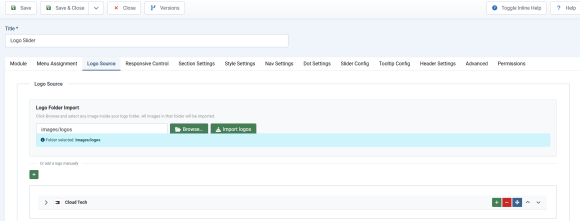
Adding more logos later
Upload the new files to the same folder, then click Import logos again and Save. Only the new images are added — existing logos, names, links and tooltips are never changed, duplicated or removed. Import the same folder twice and nothing extra happens, since images already in the slider are skipped. You can also import from more than one folder; each import just adds to what’s already there.
Upload the new files to the same folder, then click Import logos again and Save. Only the new images are added — existing logos, names, links and tooltips are never changed, duplicated or removed. Import the same folder twice and nothing extra happens, since images already in the slider are skipped. You can also import from more than one folder; each import just adds to what’s already there.
Method B — Add a single logo by hand
Best when you only need to add one logo.
-
1Click the + buttonOn the Logo Source tab, click the green + button under “Or add a logo manually.” A new, empty logo row opens.
-
2Fill in the logoChoose the image, then enter the company name. Website address and tooltip are optional.
-
3SaveClick Save.
Editing and Removing Logos
Every logo — whether imported or added by hand — is managed the same way, from a collapsible list of rows. Rows collapse to a thumbnail and name by default, so a long list stays easy to scan.


Open a logo
Click the arrow on the left of any row to expand it and see all its fields.
Click the arrow on the left of any row to expand it and see all its fields.
Change an image
Expand the row and choose a different image. Everything else stays as it is.
Expand the row and choose a different image. Everything else stays as it is.
Reorder logos
Use the up and down arrows on the right of each row — no dragging required.
Use the up and down arrows on the right of each row — no dragging required.
Remove a logo
Click the red minus button and confirm. The image file itself is not deleted from your media library.
Click the red minus button and confirm. The image file itself is not deleted from your media library.
Good to know
Once a logo is added — imported or manual — its name, link, tooltip and position are stored in the module and stay exactly as set. They won’t change just because you later add or remove files in a source folder. Any logo can be edited by hand at any time; a folder import never overwrites changes you’ve made.
Once a logo is added — imported or manual — its name, link, tooltip and position are stored in the module and stay exactly as set. They won’t change just because you later add or remove files in a source folder. Any logo can be edited by hand at any time; a folder import never overwrites changes you’ve made.
Tab Interface Overview
Logo Slider’s settings are organised into dedicated tabs:
ModuleCore configuration and layout type.
Menu AssignmentVisibility control across your site.
Logo SourceFolder import and manual logo management — see above.
Responsive ControlBreakpoint control for desktop, tablet and mobile.
Section SettingsLayout and section-level display options.
Style SettingsColours, opacity and background/parallax options.
Nav SettingsNavigation arrow style and behaviour.
Dot SettingsPagination dot style and behaviour.
Slider ConfigAutoplay speed, ticker mode and looping.
Tooltip ConfigStyling for logo hover information.
Header SettingsSection title and subtitle controls.
AdvancedCaching, CSS suffixes and other technical options.
PermissionsStandard Joomla access control for this module.
Need further assistance?
Our dedicated support team is ready to help you with installation and custom CSS styling.